
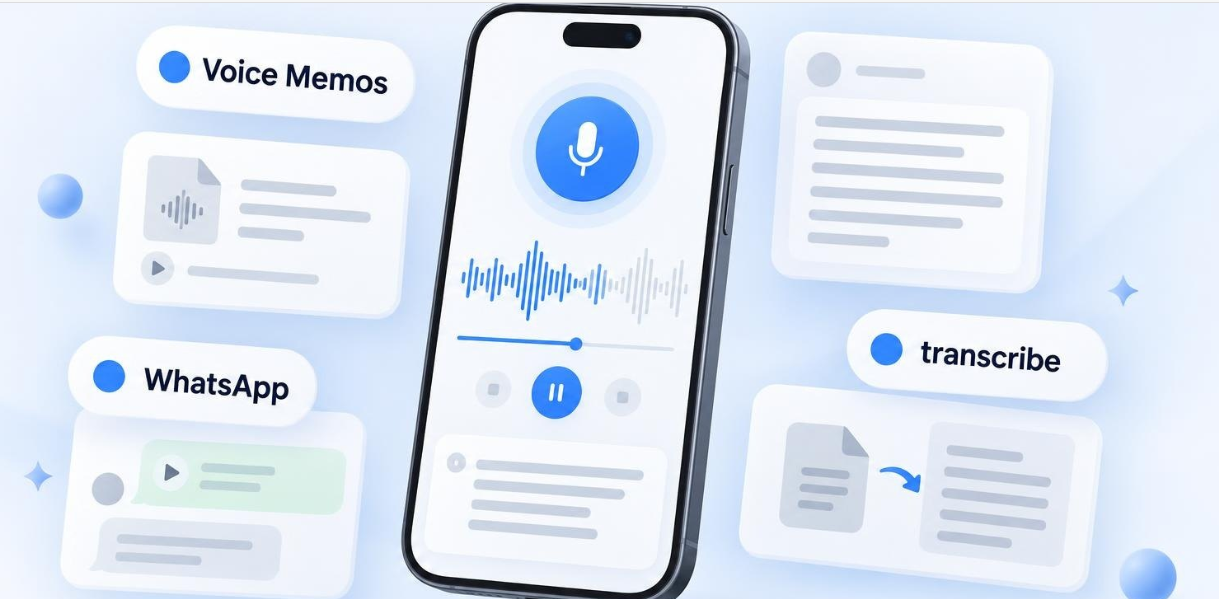
A five-minute audio clip arrives in a group chat, or a forty-minute meeting sits inside Apple Voice Memos. Somewhere in the middle of that recording is a street address, a deadline, or a quote you need to paste into an email. Replaying the whole file with headphones on takes longer than reading a few paragraphs, and sound cannot be searched, skimmed, or copied.
Apple and Meta have both added built-in speech-to-text features on iPhone, yet anyone working across European or Asian languages hits a wall quickly. Language lists remain narrow, chat transcripts are locked inside message bubbles, and neither tool translates a recording or pulls out action items.
Here is how built-in transcription works on iOS today, where its limits sit, and how to get copyable text, summaries, and translations from any Voice Memo or WhatsApp clip in under a minute.
Where built-in iPhone and WhatsApp transcripts fall short

Starting with iOS 18 on iPhone 12 and newer models, Apple’s Voice Memos app can transcribe recordings directly on the phone for free and offline. That works well for a quick personal reminder in English, French, German, or Spanish.
The catch is language coverage and output format. Apple’s built-in Voice Memos transcription supports only ten languages: English, Spanish, Portuguese, Italian, French, German, Japanese, Korean, Simplified Chinese, and Traditional Chinese. Widely spoken languages across Europe and beyond, including Dutch, Polish, Swedish, Irish, Cantonese, and Turkish, are missing from that list. Voice Memos also gives you a raw wall of text with no summary, no action items, and no translation option.
WhatsApp has a different restriction. Its manual on-device voice message transcripts let you read a clip inside the chat thread, which helps when you are on a train without earphones. However, WhatsApp transcripts are view-only by design:
- No copy or export. You cannot highlight a sentence, copy a phone number, or export the text to Apple Notes or email.
- Limited language packs. If a colleague or relative sends a voice note in an unsupported language, no transcript appears.
- Other messengers vary widely. Telegram restricts free accounts to two short transcripts a week. Instagram keeps transcripts view-only and caps voice notes at five minutes. Signal, LINE, Messenger, and Discord offer no built-in voice transcription at all.
How to transcribe an iPhone Voice Memo in 60+ languages

When a recording is in a language Apple skips, or when you want meeting notes instead of an unedited block of words, handing the file through the iOS share sheet solves both problems in about 30 seconds.
For example, Dutch speakers who record lectures or interviews on iOS run into Apple’s ten-language ceiling right away, which is why Audio Notes AI published a step-by-step Dutch iPhone voice memo guide explaining how to pass a Voice Memos file straight into speech AI for Dutch text, summaries, and action items. The exact same share-sheet flow works across more than 60 languages, from Cantonese and Polish to Swedish, German, and English:
- Open Voice Memos on your iPhone and tap the recording you want to convert.
- Tap the three-dot menu and choose Share, then select Audio Notes AI from the iOS share sheet.
- Pick the spoken language if you want to specify it manually, or let speech AI detect it.
- Wait 30 to 60 seconds. The app returns a searchable transcript alongside a structured summary and a list of action items.
If you have not recorded the meeting yet, you can also record straight inside Audio Notes AI on your iPhone or in a desktop web browser. Recording continues even when your iPhone screen locks, for sessions up to 90 minutes. Afterwards, tapping any line of the transcript on iPhone jumps playback to that exact second, and you can type a question such as “What date did we agree on?” to get an answer from the conversation without rereading every paragraph.
How to turn WhatsApp and other voice notes into copyable text

Whenever you need to quote, translate, or save a voice message from WhatsApp, Telegram, or Signal, use the share sheet rather than relying on a view-only chat bubble. The process needs no file folders or manual downloads:
- Long-press the voice message inside WhatsApp.
- Tap Forward, then tap the Share icon in the bottom corner of the screen.
- Choose Transcribe with Audio Notes AI from the iOS share sheet.
- Copy, translate, or share the output. Within about half a minute, you have copyable text, bulleted takeaways, and one-tap translation into another language.
Suppose a supplier sends a three-minute WhatsApp update in Spanish, German, or Cantonese. One tap translates the finished note into English so you can paste the confirmed figures into your project tracker.
What if the voice clip lives inside an app that blocks audio export on iOS, such as Facebook Messenger, Instagram, Discord, or Viber? Use the iPhone’s built-in Screen Recording button in Control Centre while playing the message out loud. Then import that video clip from Photos or Files. The transcription app strips out the audio track automatically and produces the same transcript and summary.
Built-in tools vs share-sheet AI transcription
Choosing the fastest option depends on whether you just want to read a ten-second message once or reuse the information later.
| Feature | Apple Voice Memos (iOS 18+) | WhatsApp built-in transcript | Share-sheet AI (Audio Notes AI) |
|---|---|---|---|
| Supported languages | 10 languages | Small on-device set | 60+ languages including Dutch and Cantonese |
| Copy and export text | Yes | No, view-only in chat | Yes, copy text or export PDF |
| Summaries and action items | No | No | Yes, ready in under a minute |
| One-tap translation | No | No | Yes |
| Cost | Free on iPhone 12 or newer | Free | Free for 3 notes or 60 minutes, then Pro |
Practical habits for clearer recordings and better privacy

Even strong speech AI struggles when a phone is buried next to a coffee cup in a noisy cafe. Three habits keep accuracy high and sensitive audio protected:
- Place the microphone close and flat. Set your iPhone flat on the table within two metres of the speaker, with the bottom microphone pointed toward them and away from background music or laptop fans.
- Ask permission first. Always let participants know before you start recording a call, interview, or seminar.
- Check how shared audio is stored. Built-in iOS transcripts stay on your handset. When you use a cloud speech tool, check its retention rules. Audio Notes AI deletes server audio within 24 hours, and if you share a note link with a colleague, it encrypts the note on your iPhone with AES-256 so the decryption key lives only in the link, which expires after 24 hours. Keep in mind that server-based AI transcription requires an internet connection and does not label separate speakers automatically yet.
Choosing the right workflow on your iPhone
Keep Apple Voice Memos and WhatsApp’s built-in reader switched on for quick, disposable checks in supported languages. When a voice note arrives in another language, runs past two minutes, or holds details you need to copy, translate, or turn into meeting minutes, send it through the iOS share sheet instead. Spending thirty seconds on a proper transcript beats replaying the same five-minute audio file three times in a row.