
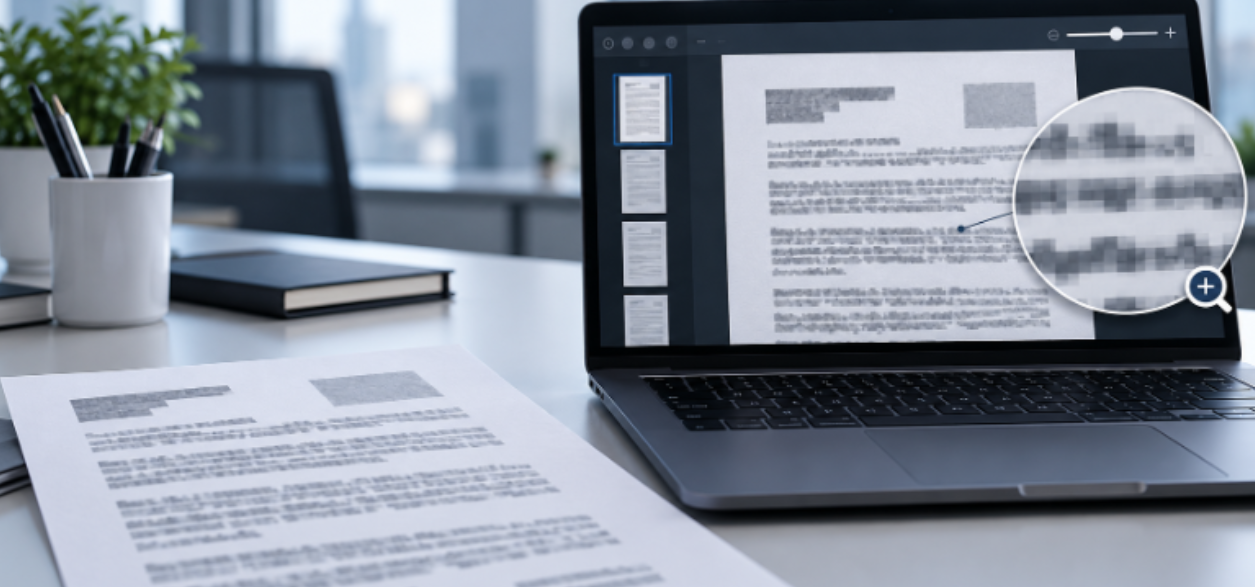
The inability to work with blurry or illegible documents in the digital workspace leads to numerous work-around, including attempts to convert a low quality pdf to high quality pdf.Several online tools are available for PDF conversion, but they cannot always deliver clear results.
Often, the reasons for a PDF degradation are many, and, in fact, some blurry files cannot be magically restored. In this article, the author describes a way to systematically analyze the issues that lead to an inability to work with a document, describes methods that users can take to improve a PDF’s resolution, and outlines what a piece of software can and cannot fix.
Diagnosing Why You Need to Convert Low Quality PDF to High Quality PDF
Before users can try to repair the quality of a document, they need to understand what makes a document look bad. Diagnostic tools that users can apply to the file to try to understand why a document is blurry and illegible, help to steer users to the right repair pathways. One such diagnostic is to try to select a line of text with a cursor.
Text-Based PDFs: The Compression Trap
If text is selectable, it’s a digital file. The conversion to a PDF likely happened through an export, and quality was lost during the process. When creating a PDF from Word or a PowerPoint, some applications compress the images to reduce file size. Permanently discarding pixel data results in loss of image quality. When low resolution images are embedded in a PDF, there is no way to recover the data.
Scanned PDFs: The Capture Resolution Limit
If text can’t be selected, then it’s essentially a picture of a page. Blurriness in these files is due to capture resolution. A page scanned at 150 DPI contains less structural detail compared to a page scanned at 300 DPI. While software may be able to clean up an image, it can’t create detail.

Effective Strategies to Convert Low Quality PDF to High Quality PDF
After identifying the type of document, strategies can be implemented to further increase resolution and readability.
1. Regenerating Text-Based Files
For highly compressed text-based PDFs, open the document in the authoring application (i.e. Word, InDesign). Reducing the resolution of images embedded in the document results in a loss of quality, and compressing the images further can lead to a loss of irretrievable data. To avoid this, set the image output to a resolution of at least 300 PPI for printed images or 150 PPI for images for onscreen viewing.
2. Repairing Scanned Documents
Scanned files require specialized image enhancement techniques to improve readability. Users should look for tools that offer:
- Deskewing: Straightening tilted pages.
- Despeckling/Noise Reduction: Removing the “noise” or imperfections/artifacts that are produced from the scan making the text look “dirty”.
- OCR (Optical Character Recognition): Performs an essential step to create an editable text layer. This allows the scanned documents to be searched, selected and copied.
3. Limited Post-Processing
Post processing refers to various image/text adjustments. It is usually not possible to perform these corrections once text is extracted. However, some advanced PDF editors provide image post processing functions if the original source file is not available. Sharpness and contrast adjustments may not generate lost pixels, however they may improve readability of existing text edges. Always preview the finalized document at 200% before printing.
Choose the Right Tool to Improve PDF Quality Safely
Converting a low quality PDF to a high quality one is a risky business. Software plays a pivotal role here. Careful evaluation of the tools based on their Compression, OCR and Data Privacy policies is recommended.
In the case of sensitive corporate documents, uploading files to random online converters significantly compromises data security. A localized, professional solution like UPDF would be the safest bet.
UPDF contains several tools to improve scanned pages, including deskew, noise reduction, and OCR. For text-based files, UPDF provides controls for export parameters and image resolution, unlike many other similar tools. This makes it easier for users to control how their files are processed, especially for files that might contain sensitive information, as UPDF processes files locally (on Windows, Mac and mobile devices).