An image can tell a story but can be made more fascinating by adding movement. Image-to-video AI software assists the content creator by letting them convert still images into a short video without the necessity of shooting each scene. The tools are practical when promoting a product, creating media content for social media, creative work, and narrating a story visually.
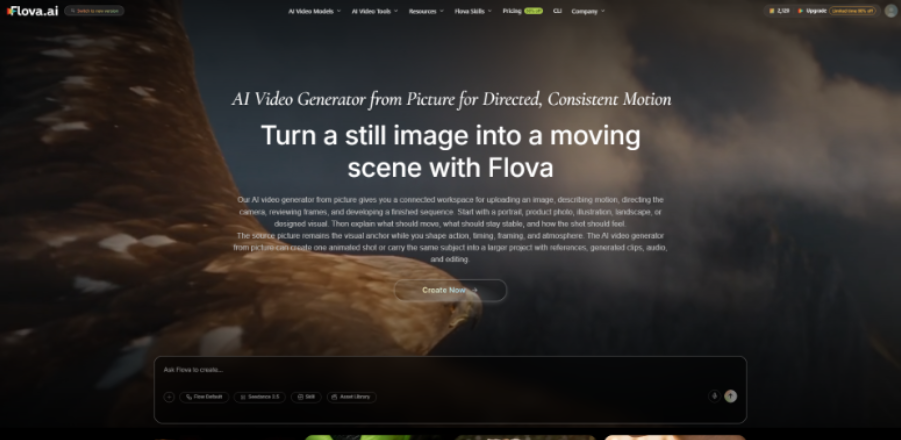
Flova AI provides an image-to-video application, which assists users in converting pictures into motion scenes. Creators do not have to begin with a blank screen; rather, they can use an existing picture as the visual base and explain how they want the scene to move. Then it becomes simpler to experiment with camera movement, changes of background, and animated details.
However, turning a picture into a convincing video takes more than uploading an image. The original picture, the prompt and the resulting movement can influence the final outcome. This review examines the way Flova AI image-to-video works, the approaches that can be used to direct scenes, practical applications of Flova AI, and its limitations.
How Does Image-to-Video Generation Work?
Image-to-video generation applies an already existing image as visual content in producing movement. The AI analyses the picture and the prompt to create frames which constitute a video clip. The directions may indicate movement of the subject, camera direction, lighting or environmental shifts.
It is not always the case that all the details are preserved in the process. Generation may vary faces, hands, product shapes and background objects. Users may achieve better output by reviewing the result and modifying the prompt.
What Images Work Best for AI Video Creation?
Clear Product Photos
Clear product shapes, good lighting and backgrounds in photographs can come in handy when making promotional videos. They provide the AI with a tangible object to operate with and assist creators in focusing on significant details.
Portraits and Character Images
It is possible to create scenes with slight movement or camera position changes using portraits. Nonetheless, the facial expression and other details can be altered, and the user must verify that the created clip will have the desired look.
Landscapes and Illustrations
Landscape photos, artwork, and fantasy illustrations offer opportunities to create atmospheric scenes. One can play with floating clouds, running water or smooth camera movements to liven up the boring visuals.
How to Use Flova AI Image-to-Video: A Step-by-Step Workflow
Step 1: Select Your Starting Image.
Choose a clear image which is suitable. It may be easier to direct the scene with good lighting, a strong subject and a minimal composition.
Step 2: Describe the Movement
Tell Flova Agent what should move and how you want the shot to feel. For example: “Move the camera slowly toward the product as sunlight reflects off its surface.
Step 3: Generate the Video Clip
Flova Agent will interpret your instructions, prepare a suitable prompt, and select an appropriate model to generate the clip.
Step 4: Improve and Revise the Result.
Play the generated video and check the motion, subject, and visual details. If needed, ask Flova Agent to regenerate the result. If the video contains multiple shots, you can ask the Agent to revise only the shot that needs work.
Step 5: Prepare the Final Video
After reviewing the clip, you can use Flova’s built-in editing tools to combine it with other scenes. You can also create multiple edits from the same footage to produce different versions of the video within one project.
Three Ways to Direct Image-to-Video Results in Flova
Image-to-Video: Animate a Single Image
This method takes a single image to be the starting point of a motion scene. It is suitable for product pictures, portraits, landscapes and illustrations. The prompt will aid in the movement, and the original image will serve as the visual point.
First/Last Frame to Video: Guide the Beginning and Ending
First/last-frame generation allows users to define the opening and ending visuals of a clip where supported. This could be used to make a more focused transition between two visual states, like a camera that has just shifted out of a wide product shot down to a closer one.
Omni Reference: Support Visual Consistency.
Omni Reference may assist creators in relying on visual references in creating scenes. It can be handy in cases where a project involves a familiar character, object or visual style that is needed in numerous shots. Variations in the results are still possible, and it is worth revising each generated scene.
Practical Ways to Use Flova AI Image-to-Video

Product Marketing
Businesses can animate product photos to create promotional clips for websites, advertisements, and social media. Subtle camera movements can make a product presentation more engaging.
Social Media Content
Artists are able to take the images they have and convert them into a short video to be shown on Instagram, TikTok, and YouTube. This will assist them in creating new content with visual content they already possess.
Creative Storytelling
Illustrations, fictional characters and imaginary environments can be animated by artists and independent creators. These videos can promote story trailers, mood videos, and experimental videos.
Tips for Getting Better Image-to-Video Results
- Start with a clear, high-quality image.
- Explain one or two key movements when prompted.
- Show directions of the camera where necessary.
- Avoid instructions that conflict with the original image.
- Review existing usage rights and plan restrictions prior to publishing.
Is Flova Image-to-Video Right for Your Project?
Flova image-to-video can be used by creators who would prefer to animate existing images instead of recording one frame per second. It may also assist creators in coming up with product images and advertisement ideas. Beginners can also communicate with Flova in natural language to create an image that meets their needs before turning it into a video. Even videos with a complete narrative can be produced in this way.
Camera movement, animated backgrounds, and changing scenes can be useful to artists and narrators. However, precise facial expressions, realistic movement, and accurate product details may take a few generations and some extra editing.
The most suitable option will be based on your objectives, affordability, and expectations. Test the tool with a small project before spending money on a paid plan and scrutinise features, credit limits, and the quality of its output.