How to Generate High-Performing UGC Videos with Vmake

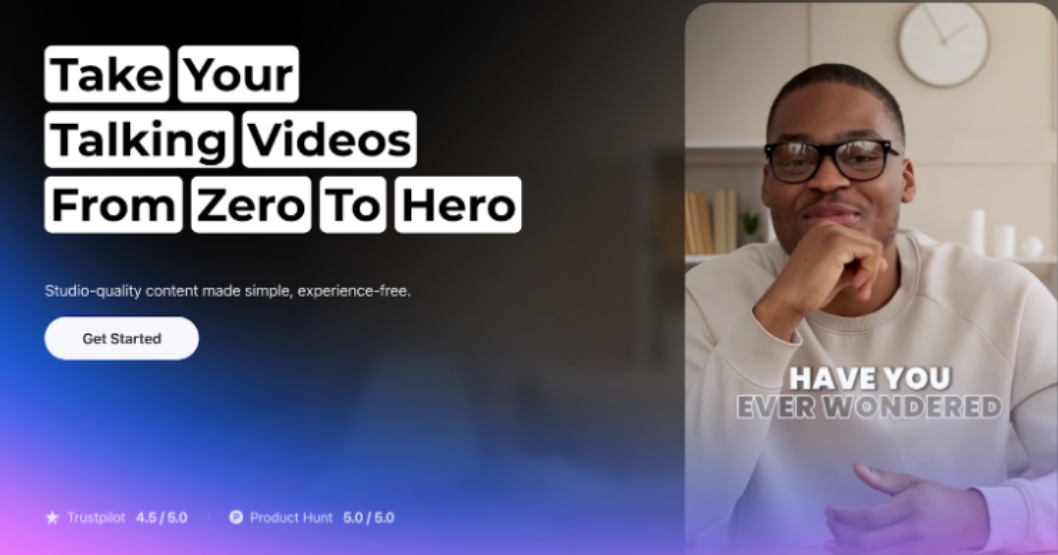
User-generated video is a trend since it has a huge reach among users of various industries, from short videos to engaging reels, and they are already competing with traditional ads. However, the primary challenge in producing the videos requires creators, editors, and brand designers to work synchronously at a time. This is where Vmake UGC video generator plays a crucial role in allowing the founders to generate video using AI without the need for cameras, complex designing, and several hours of editing work. 

Why does user-generated content gain Popularity?

Vmake videos work well, I think, because they copy the way regular people chat about stuff they like or need. It’s kind of like everyday talk, not some fancy ad. They go with this basic setup most of the time, starting with something to grab attention, then showing a problem that feels real, a fast demo of how it helps, and ending with what you should do next. 

The fantastic made videos fit right into social media scrolls, so people pause, keep watching, maybe even click or buy. The tool behind Vmake builds on exactly that kind of thing. It skips all the movie-like polish and goes for quick making, real feeling, and clear points instead. Those are the parts that really help with user-generated content, at least from what we have seen.

Steps to Create Videos using Vmake


Vmake looks like it’s made to be easy for anyone to use. I signed up and right away got into this main area. It’s clean and not too complicated, with the important stuff right there where you can grab it. From that spot, there are these three ways to make videos, like turning text into a video or an image into one, and then video from video too. It seems straightforward once you are in there. The options are text to video, image to video, and video to video.


  1. Text To Video


The Text-to-Video option is ideal for changing the text into engaging videos. You can give text to describe your image and mention how you would like to create the video. By doing this, Vmake’s AI helps generate a video that matches your requirements, and you can then customize your video using the advanced features. From elements to frames, you can make use of the background visuals, text overlays, and transitions to create a perfect video to tell your brand’s story.

  1. Image to Video

If you want to convert your images to video, you can do so effortlessly by changing them into a video instantly using the Image-to-Video option. Upload your images in Vmake using the upload option, and remember they support formats such as JPG and PNG. The image size should be 10 mb for a successful upload. You can include descriptive text and choose any transition and effects to make the video more exciting.

  1. Video to Video

If you already have a sample video and want to revamp the style and look, you can absolutely use Vmake to upgrade. Just select the video-to-video option to make your uploads work for different styles. Moreover, you can choose various themes like anime, comic book,3D animation, doodle and etc to create a new visual experience. This is extremely useful when repurposing content with a new, great look. 

Exploring Additional Features: Elements, Frames, and Effects

Beyond the above three options of converting the video, you can also enjoy the additional features, such as adding elements, frames, and effects to your modified videos.

Elements –  The elements feature includes the Ai models to make your creative video and allows you to seamlessly can be used to add your branding label, icons, logo, and product images. These can make your video creation more innovative. 

Frames – Frames help you take control over the video waiting process, and you can upload various images of the same size to create a consistent theme. Moreover, you can add a video description to give a set of instructions that are expected to be seen in the video. This helps you see the most interesting video for your business. 

Effects – Effects can make or break your video appeal and reach. You can include a 360-degree view of the video to add more motion that helps reach a massive audience group. To add a dynamic touch to your existing video, explore the various effects that Vmake offers.

Practical uses across Business:

Many different types of users can benefit from the Vmake AI Image Generator. E-commerce vendors don’t need to pay for expensive photo shoots to produce promotional and product images. Ads, logos, product labels, and social media images can be created on demand by the business team. Influencers and content producers can create original images that fit their own aesthetic.

Vmake allows even small business owners with little design experience to produce polished images that complement marketing and branding objectives. The platform maintains a constant output quality while adjusting to varying skill levels. Apart from that, Vmake offers other video editing tools such as removing video watermarks, enhancing video quality or adding captions to your videos with AI.


Drafting and creating videos no longer require additional training and extra resources, while you have practical options like Vmake AI video generator. The help you streamline the process of video creation more structured and authentic. With the Natural language prompts, it is effortless for AI to understand the user request and create the standard videos in minutes. 

Final Thoughts

Vmake is a great alternative for video creators who wish to create a video in a short span of time for an effective customer reach. By enabling every business to create its own videos, regardless of technical expertise, Vmake eased the process. It enables users to effortlessly transform their brand ideas into superior-quality videos by providing a variety of generation options instantly.

Vmake is crucial for business across various industries around the world. Small entrepreneurs to renowned businesses interested in their video production can make use of Vmake by maintaining their marketing budget. The platform’s AI-driven methodology helps you advertise through social media and your business website.


Design Custom Flyers Easily with Online Flyer Creators

Designing a flyer used to be difficult and time-consuming. Today, with online flyer creators, anyone can design high-quality flyers quickly and easily.

Whether you’re promoting an event, advertising a sale, or sharing information, online flyer tools make the process simple, affordable, and accessible to everyone.

If you’re ready to create your own custom flyer, follow these helpful steps and tips to get started.

Know the Purpose of Your Flyer

Before you begin designing, think about why you’re making a flyer. Understanding your purpose will help guide your design choices. Flyers can be used to promote business events, announce special sales, advertise community programs, or invite people to personal events like birthdays or fundraisers.

Knowing your goal will help you choose the right layout, style, and content. If your flyer is for a business, it should look professional and reflect your brand. If it’s for a fun event, it can be more colorful and casual.

Choose an Online Flyer Creator

Once you have a clear purpose, it’s time to pick an online flyer creator. These platforms are designed to help you create flyers quickly, without needing graphic design experience. Most flyer makers work directly in your web browser, and some even offer mobile apps for designing on the go.

Look for a flyer creator that offers user-friendly tools and a wide variety of templates. Some allow you to create a flyer for free, while others offer advanced features through paid plans.

Take your time to explore the different flyer maker offerings and pick the one that best fits your needs.

Select the Right Template

Most flyer creators start by letting you choose a template. Templates are pre-designed layouts that give your flyer a professional look from the start. You can browse through categories such as business, event, school, sale, or community.

Pick a template that matches the tone and style of your message. Don’t worry if it’s not perfect-you’ll be able to change the text, colors, and images later. A good template saves you time and gives you a strong foundation to build on.

Customize Text and Fonts

Once you have your template, start editing the text. Add your headline, main message, and contact information. Keep your message short and clear. People should be able to understand the main point quickly just by scanning the flyer.

Use larger fonts for headlines and smaller fonts for details. Choose fonts that are easy to read and match the tone of your flyer. For example, a modern font works well for business flyers, while a fun, rounded font might be better for a children’s event.

Add Images or Logos

Images can make your flyer more attractive and memorable. You can upload your own photos or use the images provided by the flyer maker’s built-in library. Make sure your image is clear and relevant to your message.

If you’re designing a flyer for your business or organization, be sure to add your logo. This helps people recognize who you are and gives your flyer a more professional look.

Images should be placed in a way that supports the text, not overcrowds it. Keep your layout clean and focused.

Adjust Colors and Design Elements

Most online flyer tools let you change colors easily. Choose colors that fit your brand or the theme of your event. Bright colors grab attention, while softer tones can give a calm and professional feel.

You can also move text boxes, resize images, and add design elements like shapes or icons. Play around with the layout until it feels balanced and easy to read. Don’t be afraid to experiment-you can always undo changes or try a different layout.

Keep Your Flyer Simple

One of the best design tips is to keep your flyer simple. Too much text or too many graphics can make your flyer look cluttered. Stick to one main message and make sure the most important details stand out.

Use clear headlines, space between sections, and a clean layout to guide the reader’s eye. A simple, well-organized flyer is more effective than one that tries to say too much.

Choose Print or Digital Format

After finishing your design, decide how you want to share your flyer. If you want to print copies, most flyer creators let you download your file in high-quality formats like PDF. You can then print it at home or send it to a print shop.

If you plan to share your flyer online, save it as an image file like JPG or PNG. You can post it on social media, email it to contacts, or add it to your website. Many flyer creators even offer options to share your design directly from the platform.

Check the Details Before You Share

Before printing or posting your flyer, take a few minutes to double-check everything. Make sure names, dates, times, and contact information are correct. Look for spelling and grammar mistakes. Ask someone else to review it if possible.

Even small errors can hurt your message or make your flyer look less professional. A careful final check helps you avoid problems and ensures your flyer is ready to go.

Save Your Flyer for Future Use

Many flyer creators allow you to save your designs. This is helpful if you plan to make similar flyers again in the future. You can update the text and images without starting from scratch. Saving your flyers also lets you keep a record of your past promotions or events.

If your flyer maker offers cloud storage or an account dashboard, take advantage of it. This makes it easy to organize and access your designs any time you need them.

Design Custom Flyers Now

Online flyer creators make it easy for anyone to design and share custom flyers. By following a few simple steps and design tips, you can create a flyer that grabs attention and delivers your message clearly.

Take the time to explore your options, plan your layout, and use the features available to you.

With just a little effort, you’ll be ready to design flyers that stand out without stress, high costs, or complex software.

Check out our other blog posts for more informative content!


DesignEvo: A handy logo creator to use online. #DesignEvo #Logos

The Digital era is now, visual elements are needed. From creating cool logos, designing wedding invitations, brochure designs, to designing social media posts, visual elements are like one of the necessities and very necessary.

So no wonder, the ability of free design is now a special demand for various needs. No wonder also why the profession as a graphic designer is in great demand and sought after today.


If you have a blog or website, for example, of course, To get a logo should be on your must-do list. Sure, you can use the services of a logo maker out there. But what if you made your own website logo?


Right now, you can easily create a logo. There are lots of alternatives that you can use, and one, of course, is the logo maker application, both free and paid logo maker applications. Among these online logo makers, DesignEvo could be a good alternative to help you create your brand logos.


What is DesignEvo?

DesignEvo is available for free with a myriad of features. Noted, there are more than 10,000 templates that are ready to use, just change, to then be adjusted to our needs.


As mentioned above, DesignEvo has more than 10,000 templates. Of that many collections, of course, you can be more flexible when making logos online when using it.


The most interesting, you are possible to create a logo for any needs, ranging from making website logos, application logos, to the logo for the design of wedding invitations.


Key Features of DesignEvo 


10,000+ Templates: Of the wide range of templates, you only need to use specific keywords to find the logo template that suits your needs.

Abundant Font and Icon Choices: There are millions of icon choices and more than 100 font choices that can help you design a logo as needed.

Easy to Edit: One of the leading features is that all the templates provided are very easy to edit and adjust to your preferences.

Export in Vector Form: Want to use a logo template that was created in another software? Just export it in vector form SVG or PDF, so the quality will not be damaged if the resolution is changed.

Suitable for use in print media such as clothes, brochures, banners, and so on.

In addition to vector, you can also download logos that have been created in PNG and JPG formats.

Cloud-storing: That way, you don’t need to worry about losing logo data that hasn’t been finished or has already been created.

You can also synchronize it on various devices, whether it’s on a browser, desktop, or mobile application.

Free: In addition to the paid package, of course, you can also make a free logo with DesignEvo. And many more.

Well, of all the features above, what features are most interesting to you?

DesignEvo Price


DesignEvo can be used free of charge. It’s just that the features offered in the free service are very limited. This free feature is very suitable to use if you want to try all the features first before actually buying it.

If appropriate, you can buy one of the two paid packages that it offers. DesignEvo offers Basic and Plus packages, each for $24.99 for the Basic package and $49.99 for the Plus package.

Wrapping up


DesignEvo is very user-friendly. If you have no design skills and need a logo in short, you can do it by yourself with this tool.