UkeySoft Amazon Music Converter

Amazon has provided high-quality music resources for music lovers to streaming, if you want to enjoy the best quality of Amazon Music tracks offline, you may want to convert Amazon Music Prime/Unlimited/HD songs to MP3 in 320kbps. UkeySoft Amazon Music Converter offers high-qualtiy MP3 output format for you to enjoy unlimited playback experience. 

Amazon Music is a popular streaming music service, you can only play songs on authorized devices with Amazon Music app, if you cancel subscription, the Amazon Music downloads become unplayable, and you cannot transfer these downloaded songs to other device or player for playing offline. These limitations makes you feel frustrating if you want to listen to your favorite music and playlist more freedom. Fortunately, UkeySoft Amazon Music Converter can you download and convert Amazon Music to MP3 format, so you can listen to Amazon Music on any device offline without restrictions.


In this article, we’ll review UkeySoft Amazon Music Converter, covering its overview, feature, and a simple user guide . No matter you want to control your music library freely or enjoy them in the way you like, this music downloader & manager tool will help you. Let’s take a look.

UkeySoft Amazon Music Converter Overview

UkeySoft Amazon Music Converter is an innovative and powerful tool designed for all Amazon Music users, a built-in Amazon Music web player in the program, no need to install the Amazon Music app, no need to subscribe Amazon Music Prime/Unlimited/HD subscription, just login your Free account, you are able to access the full Amazon Music library and download streaming music to Windows/Mac computer for playing offline.

This software can also convert Amazon Music into popular formats such as MP3, M4A, AAC, FLAC, WAV, and AIFF, so that you can listen to Amazon Music offline on any devices. What’s more, it would preserve lossless output audio quality, with options to convert music to MP3 in 320kbps for an enhanced listening experience.


As the best Amazon Music Converter, it can help users easily to take full control of their music library, and enjoy Amazon Music songs offline without restrictions. Whether you want to play your songs offline, transfer them to other devices, or store them in various formats for versatility, this tool makes it simple and efficient. It’s a good tool for creating a personalized, high-quality music library that you can enjoy music offline anywhere and anytime.

Main Features of UkeySoft Amazon Music Converter

The UkeySoft Amazon Music Converter is a user-friendly tool, widely chosen for its powerful features that make downloading music more simple and efficient. Here are the features that it offers:

Download Unlimited Songs and Playlists from Amazon Music

With UkeySoft Amazon Music Converter, you can download an unlimited number of songs from Amazon Prime Music, Amazon Music Unlimited, and Amazon HD Music, whether you use a paid account or free account, you can save individual tracks, entire albums, or playlists as local DRM-free MP3 files. The software also uses advanced decryption technology to remove DRM protection from the encrypted songs, only 3 steps, you can save Amazon Music songs as local MP3 files and enjoy them offline on any device.

Convert Amazon Music to Multiple DRM-Free Audio Formats

Amazon Music tracks are typically protected by DRM, limiting your control over them. UkeySoft solves this issue by converting songs to popular DRM-free formats like MP3, M4A, AAC, FLAC, WAV, and AIFF. This means you can keep your music forever and play it offline on any device with ease.

Preserve High-Quality Audio

UkeySoft Amazon Music Converter uses advanced audio conversion technology to ensure minimal audio quality loss during conversion, you can adjust the parameters according to your own needs, like bitrate and sample rate. It supports lossless audio output, so you can enjoy music with high-quality. You can even customize bitrate settings in 320kbps MP3 for compatibility or FLAC for high-fidelity sound. To enhance the output audio quality, you even can convert Amazon Music to AAC in 512kbps. Of course, the higher output music quality, the larger the file size with slower conversion efficiency. If you don’t have high requirements for the music quality, I recommend choosing MP3 256kbps, which is comparable with original music quality.

16X Conversion Speed, Batch Downloading Supported

Thanks to advanced acceleration technology, UkeySoft Amazon Music Converter can convert Amazon Music in batch at 16X faster speed, so that you’re able to save entire playlists or albums in one go, saving significant time and effort.

Retain Metadata for Easy Organization

The converter preserves all original metadata, including song titles, album names, artist details, genres, and album covers. This makes it easy to organize your library and quickly find the tracks you want.

No Amazon Music App Required

UkeySoft includes a built-in Amazon Music web player, so you can search, browse, download, and play music directly within the software without needing the official Amazon Music app or any additional tools.

Tutorial: How to Download Amazon Music to MP3 in 320kbps

Now that you’re familiar with UkeySoft Amazon Music Converter, let’s dive into how to use it to convert Amazon Music into high-quality MP3 files, up to 320kbps and 48kHz. Follow these easy steps:

Step 1. Log in to Your Amazon Account

Install and launch UkeySoft Amazon Music Converter on your computer. Once opened, log in with your Amazon Music account.


After login your account, you can directly access the full Amazon Music library and streaming music online.


Step 2. Select Output Format to MP3

Click the “Settings” icon in the top-right corner. In the settings window, choose MP3 as the output format.


You can also customize the bitrate (up to 320kbps) and other audio parameters to suit your needs.


Step 3. Add Amazon Music Tracks to List

Open an album, artist, or playlist in Amazon Music. Click the red “Add” button on the right side of the screen to load all the tracks into the conversion list. The software will automatically detect and skip duplicate songs.


Step 4. Select Tracks for Conversion

From the list, select the specific songs you’d like to convert to MP3.


Step 5. Start Converting Amazon Music to MP3

Click the “Convert” button to begin. The software will start converting the selected Amazon Music tracks to MP3 format.


Step 6. Get MP3 Music Files in 320 kbps

Once the conversion is complete, click the blue folder icon to open the output folder.

convert-amazon-music-finished.webp


Here, you’ll find all your converted MP3 tracks saved on your computer, ready for offline listening or transfer to other devices.


Step 7. Play the Converted MP3 Amazon Music Offline

Open the built-in Music Manager & Player of the program, you can see these converted songs are automatically sorted by Date, Artist or Album, so that you can easily to mange your music library. Now, you can directly play them offline, don’t need to using the Amazon Music app or other music player.


Pros and Cons of UkeySoft Amazon Music Converter

Pros:


Download Amazon Music for free.

User-friendly and sleek interface.

Download Amazon Music and keep your tracks permanently.

Supports multiple output formats: MP3, FLAC, M4A, AAC, WAV, AIFF.

Retains ID3 tags and metadata.

10X faster download speeds with batch conversion.

Built-in Amazon Music web player, no need to install additional apps.

Available for both Windows and macOS.

30 day free trial.

Cons:

Not free, trial version only allows conversion of the first 3 minutes of each song.

Not available for mobile devices.

System Requirements

UkeySoft Amazon Music Converter is full compatible with both Windows and Mac computer, you can directly download Amazon Music songs, playlist, albums, audiobooks, podcats, etc. on your computer.

Operating System: Windows 8, 8.1, 10, 11 (32-bit & 64-bit)

Operating System: Mac OS X 10.6 and above

Processor: 1GHz processor or above

Monitor: Monitor with 1024×768 pixels or higher resolution

RAM: 512MB or higher of RAM

Multi-language Interface: English, Simplified Chinese, Français, 日本語, Españo, Deutsch, Czech, Danish, Indonesian, Malay and Turkish.

Verdict

In this article, you have a clear understanding of this excellent Amazon Music converter. To convert Amazon Music to MP3, UkeySoft Amazon Music Converter offers the simplest but fast and high-quality music conversion solution to you. With this helpful music downloader, you can effortlessly download Amazon Music to MP3 in 320kbps, don’t need to install the Amazon Music app, and no need a subscription account. After getting the MP3 songs, you can transfer these converted songs to MP3 players or other devices without any restrictions. It’s definitely worth to have a try, let’s starting your music downloading journey today!

Convert MP4 to MP3 on Mac in these Top 4 Ways [2023]

Are you a Mac user seeking to extract enchanting soundtracks from your favorite MP4 videos so you can have those captivating MP3 melodies playing on your preferred audio device? In the ever-evolving digital landscape, the ability to convert MP4 to MP3 on Mac has become a necessity for music enthusiasts and tech-savvy individuals alike. And here in this post, we have pieced together a complete post explaining how to convert MP4 to MP3 on Mac with the best 4 ways. Follow through and find what we have on the menu!

Convert MP4 to MP3 Mac with the Best Quality

Running as the best MP4 to MP3 converter for Mac, VideoProc Converter boasts a suite of superb MP3 profile presets along with 370+ format conversions, allowing you to easily convert MP4 to MP3 and other audio/video formats on Mac/MacBook/iMac/Mac mini with the best quality. Featuring Full GPU acceleration and an exclusive algorithmic design, the MP4 to MP3 converter outstrips other tools in terms of its top-notch conversion quality and speed. Moreover, a wealth of customizable controls built into the system allow you to further tweak the audio codec, sample rate, bitrate, and other parameters of the MP3 file you convert to. 

What the Best MP4 to MP3 Converter Mac can Offer:

  • Batch convert MP4 to MP3 on Mac in the fastest way with its full GPU acceleration tech.
  • Customizable codec options to output lossless MP3 audio files.
  • Support 370+ codecs and formats covering both popular and obscure ones.
  • Personalize music info as you like: cover, name, artist, album, comment, and lyrics.
  • One-stop video processing on Mac: 4K video editing, compressing, screen recording, etc.

How to Converter MP4 to MP3 on Mac with the Best Quality

Step 1. Free download VideoProc Converter on your Mac or Macbook, install and launch it.

Step 2. On the home page, click Video > +Video to import the MP4 video you wish to convert to MP3. Batch import and conversion are supported.

Step 3. Go to the Music tab at the bottom, and select MP3 as the output format. Or you can go to the Target Format panel on the lower left, where you can find more audio presets to work with.


Step 4. (Optional) Double-click on the MP3 icon to access the Format and Name & Tag page, where you can adjust audio quality, personalize music info, and more.

Step 5. Toggle on the Hardware Acceleration Engine option, and hit the Run button to convert MP4 to MP3 on Mac.

Convert MP4 to MP3 Mac with iTunes

If you prefer to convert MP4 files to MP3 format using the built-in program on macOS, iTunes could offer a solution. However, it’s important to note iTunes alone cannot perform this conversion directly. Instead, you’ll need to follow a slightly more intricate process that involves utilizing both iTunes and QuickTime Player. And here’s a detailed guide on how to convert MP4 to MP3 on Mac with iTunes:

Step 1. Open the MP4 video you wish to convert to MP3 on QuickTime Player on Mac.

Step 2. Navigate to the ‘File’ menu and select ’Export’ > ‘Audio Only’ to convert MP4 into a .m4a audio format. And export the audio.

Step 3. Then open iTunes, and add the M4A file. Click iTunes in the top menu bar, select Preference > General > Import Settings, and from there, modify the AAC Encoder to MP3 Encoder, and click OK.

Step 4. Locate and select the M4A audio file in the Library, go to the File menu > Convert > Create MP3 version to convert MP4 to MP3 on Mac with iTunes.

Convert MP4 to MP3 Mac with VLC

Characterized by its robust media player capability, VLC also comes with a conversion option that allows Mac users to free convert MP4 to MP3, FLAC, and other audio formats. Laden with a plethora of features, the MP4 to MP3 converter Mac can cut down on the amount of time needed to convert MP4 to MP3. Besides, with the built-in audio equalizer to boost the MP4 audio sound, you can place trust in the MP3 output quality VLC can deliver. 

But it is important to be aware that VLC does not provide preset quality options for the MP4 to MP3 conversion process. This means that newcomers to VLC Mac may require some time to understand how bitrate and sample rate impact MP3 sound quality and learn how to manually adjust these settings beforehand. 

Step 1. Open VLC on your Mac device. 

Step 2. Go to the File tab at the top left > Convert/Stream, and in the pop-up window, import the MP4 file your wish to convert to MP3.

Step 3. Choose Audio-MP3 as the output format, hit Browse to set the output destination, and click Save to convert MP4 to MP3 on Mac with VLC.

Convert MP4 to MP3 Mac Online

Those who are reluctant to use either the third-party or built-in program to convert MP4 to MP3 on Mac can check out the online MP4 to MP3 solutions. But online tools could contain virus plugs or inundate your screen with intrusive ads. And after conducting thorough tests, we suggest using CloudConvert as a safe online option to convert MP4 to MP3 on Mac. 

Note that maintaining a stable and reliable internet connection on your Mac computer is crucial for a seamless MP4 to MP3 conversion. CloudConvert offers only 25 free conversions per day, beyond which a subscription fee is required to continue using the service.

Step 1. Go to the CloudConvert MP4 to MP3 converter on your Mac.

Step 2. Hit the Select File option and import the MP4 video, and make sure the output format is set as MP3. 

Step 3. Click Convert to convert MP4 to MP3 on Mac, and once the conversion is complete, hit Download to save the MP3 file to your Mac.

4K YouTube to MP3: Convert YouTube Videos to MP3 With Ease

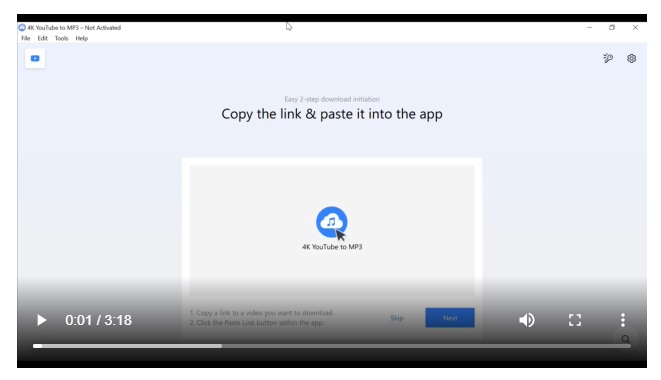
4K YouTube to MP3 was specially designed to extract audio from YouTube, Vimeo, Facebook and other online video hosting services. No annoying and complicated settings, just a clean, simple and functional interface. Downloading is simple and straightforward: just copy the video link from your browser and click ‘Paste URL’. Done! 

And best of all, you can use YouTube to MP3 converter for free and enjoy sound anywhere, anytime, and of course, even when you’re offline!

An underground or any other place with poor internet is not a reason to give up your favourite content. Now let’s have a closer look at the tool that can easily convert any video to MP3.

What is 4K YouTube to MP3 

4K YouTube to MP3 is a desktop solution specially designed to convert videos to audio formats.

Despite its name, 4K YouTube to MP3 also allows you to save soundtracks and entire YouTube playlists from videos in OGG and M4A formats, and you can choose between different bitrates to pick the right balance of speed and quality.

It supports not only YouTube. You can also use it to save audio from videos hosted on Vimeo, Flickr, Facebook, SoundCloud, and more. Just copy the link from your browser and hit the green ‘Paste URL’ button to get started.

Best of all, unlike some YouTube to MP3 converters, 4K YouTube to MP3 doesn’t come bundled with additional software. Upgrading to the premium version for a one-time fee will allow you to download entire YouTube playlists and channels, but the free software is also perfect for everyday use!

The application is available for PC, Linux and macOS. The tool supports MP4, MP3, MP4A, MKV, OGG, FLV, 3GP formats and includes these sites as supported sources: YouTube, Facebook, Vimeo, TikTok and many others.

4K YouTube to MP3 Features 

4K YouTube to MP3 offers many features that make it so convenient and worth trying.

Here are just some to name. 

Downloads Search Bar

If you download many videos to convert to MP3 or save lots of audio content from YouTube, SoundCloud, Vimeo or others, your downloads list is certainly rather long. 

Luckily, 4K YouTube to MP3 offers a downloads search feature which helps you quickly search through your complete downloads list and find the file you are looking for.  

Besides, you can sort your downloads list alphabetically by their name. This can be done either from A to Z or in reverse order from Z to A.

Built-in Browser 

4K YouTube to MP3 also has a browser built-in, which means you can go to YouTube, Instagram, or any other website supported and find the video you want to download as MP3 right in the app. 

Just click on the website icon, find the content, and click the Download button and the software to start downloading the video to your computer. 

Download Entire YouTube Channel and Playlists

One of the most useful features of this software is downloading entire channels and playlists option. That can be very useful, especially if you want to download your entire channel’s library as audio files. 

Many Download Settings 

4K YouTube to MP3 also offers a plethora of settings that can help you customise your experience the way you want. 

You can change the audio quality and the audio format you want to use, the download path, set limits on the download speed available to the app, alter the notification settings, and more.  

Pricing and Fees 

4K YouTube to MP3 is free to use. However, the app offers a license that you can buy to unlock additional features, including unlimited downloads, concurrent downloads, ad-free usage, and the ability to download entire channels, etc.

Licenses start from $15 for a Personal license and go up to $65 for a Bundle that includes licenses for 4K Video Downloader Pro and 4K Stogram Pro, and 4K YouTube to MP3.  

How to Convert Video to MP3 


  1. Install 4K YouTube to MP3 on your desktop. It’s available for macOS, Windows and Linux. 
  2. Copy the link to the desired video from a web browser or built-in app browser. 
  3. Click “Paste link” in the upper left corner of the tool’s main window.

That’s it!

The copied link is automatically taken from the clipboard. You don’t need to press Cmd + V / Ctrl + V. After that, a window appears where you select the resolution and frame rate, format, and the folder where the audio should be saved. 

When the audio is downloaded, you can open it in your default player or in the in-app player. 

Give it a shot today and use 4K YouTube to MP3 for free!