
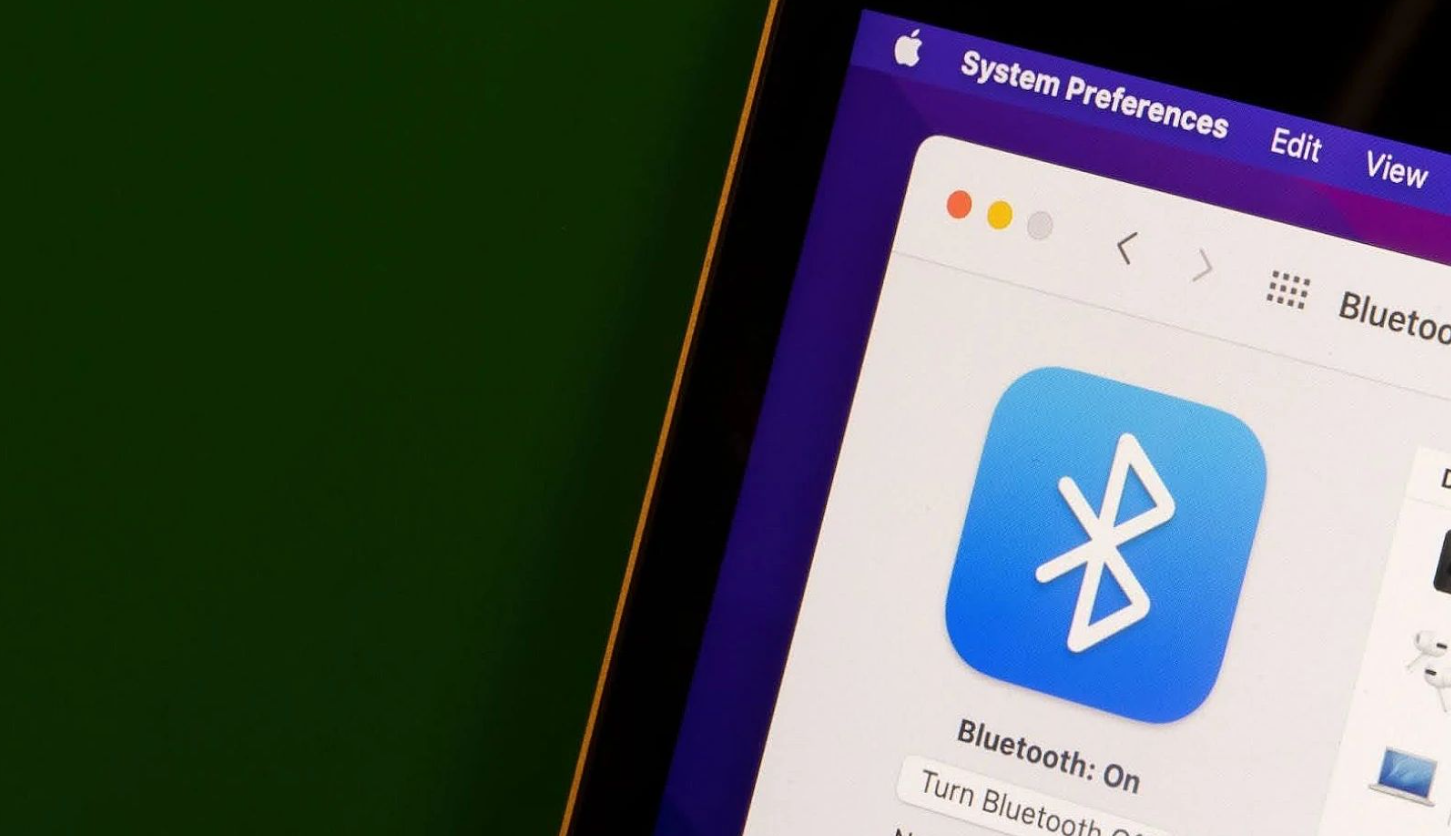
Apple laptop users sometimes face the problem of MacBook Bluetooth not working. In this article, we will tell you the reasons why Bluetooth is not working properly and how to fix the issue.
Why Bluetooth is not working on my MacBook
Common causes include:
- configuration failure;
- outdated macOS;
- a lot of devices are connected;
- the system is not optimized;
- .plist files are corrupted.
8 tips to fix Bluetooth on your MacBook
You can fix the Bluetooth problem yourself if you use our step-by-step instructions.
1. Rebooting Bluetooth
The module does not always detect and connect wireless devices. In this case, a simple reboot can help – turn Bluetooth off and on again.
2. Restart your MacBook.
To fix the software not working properly, restart your computer. To do this, click on the Apple icon and click on “Reboot”.
3. Resetting the Bluetooth module
If the problem is on a MacBook with macOS Monterey:
- Press Command+Option.
- In the Spotlight search, type “Terminal” and press Return.
- Paste “sudo pkill bluetoothd” and confirm the action by pressing Return.
- Reboot the device.
For MacBooks with Big Sur or older versions of macOS:
- Press Shift+Option+Bluetooth icon.
- Click on the “Reset Bluetooth module” option.
If your laptop is running macOS Catalina or earlier, click “Debug” and then “Reset Bluetooth module” in the system settings.
4. disconnecting peripheral devices
Sometimes reconnecting peripherals can help solve the problem:
- From the Apple menu, go to System Preferences.
- Select Bluetooth and click on “X” to deactivate the selected device.
- Restart your MacBook and reconnect the device after a few minutes.
5. System optimization and cleaning
You can perform optimization with CleanMyMacX which cleans the system of junk, removes malware, etc. Launch the program, go to the system partition, and click “Scan”. Once the process is complete, run the automatic cleanup.
6. Upgrading macOS and Bluetooth
Go to System Preferences through the Apple menu and then to the Software Update option. Update macOS when a newer version is available.
7. Delete Bluetooth.plist files.
If the module property list files are corrupted, this can cause malfunctions. How to fix it:
- From the Finder menu, select “Go to” and then “Go to Folder”.
- Insert /Library/Preferences, click Go, and delete the com.apple.Bluetooth.plist file.
- Paste ~/Library/Preferences/ByHost, hit Go, and delete com.apple.Bluetooth.xxx.plist.
- Restart your MacBook so that the system creates new files.
8. Alternative connection method
If you’re having trouble connecting Bluetooth, try using the AirBuddy or ToothFairy apps. They are available for free after you subscribe to Setapp.
Source: Techtoro.io Blog